
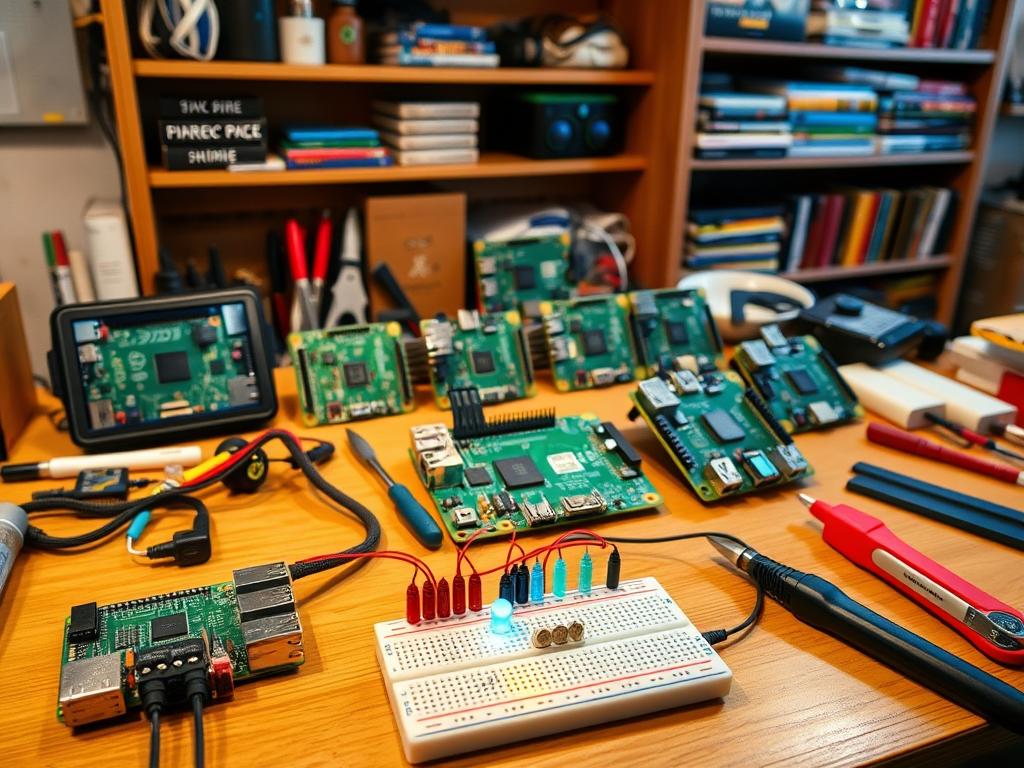
Imagine a tiny computer that fits in your hand and costs less than dinner. That’s the Raspberry Pi. It’s a small device that has changed DIY tech. It has all the parts of a computer but is affordable and easy to use.
The Raspberry Pi Foundation made this tiny wonder for everyone to learn computer science. Unlike big computers, these boards let you see how they work. They have processors, memory, graphics, and special pins for connecting to the world.
These devices are amazing because you can do so many things with them. You can make smart homes or retro gaming consoles. Both newbies and experts love them for being easy to start with and very powerful.
This guide will teach you the basics of mini PC coding and how to set up your first device. You’ll learn programming languages and fun projects to try. By the end, you’ll know how to start your own projects with this amazing tool.
Introduction to Raspberry Pi and Its Capabilities
The Raspberry Pi is a tiny computer that has changed how we learn to code. It’s small, like a credit card, but packs a big punch. It’s made learning about computer science fun for many people.
It’s used in schools and home workshops. It helps beginners start their journey in programming and electronics.
What is Raspberry Pi?
The Raspberry Pi is a small, cheap computer made by the Raspberry Pi Foundation in the UK. It was created to give everyone access to computing power. It first came out in 2012.
This mini computer has everything a big PC has, but it’s tiny. It has a processor, memory, and ports for connecting things.
The Raspberry Pi shows its parts, making it great for learning. It lets users see how a computer works. This makes learning about computing easy and fun.
Key Features of Raspberry Pi
New Raspberry Pi models are very powerful for their size. They have fast processors and lots of memory.
- Processing Power – Current models feature quad-core processors running at speeds up to 1.8GHz
- Memory Options – Available with RAM configurations from 1GB to 8GB depending on the model
- Connectivity – Built-in Wi-Fi, Bluetooth, Ethernet, USB ports, and HDMI output
- GPIO Pins – General Purpose Input/Output pins that allow direct interaction with electronic components
- Low Power Consumption – Typically runs on 5V power via USB, making it energy efficient
The GPIO pins are key for hardware coding projects. They let the Pi connect to sensors and other devices. This shows how code can control the real world.
Why Choose Raspberry Pi for Coding?
The Raspberry Pi is great for beginners. It’s easy to use, versatile, and has lots of support. It’s perfect for learning to code.
It’s also very affordable. Models start at under $35. This makes it easy to try out projects without worrying about breaking expensive stuff.
With the Raspberry Pi, you can make projects that do real things. This makes learning more fun and useful. It shows how code can change the world.
- Massive Community Support – Countless tutorials, forums, and resources available online
- Versatility – Can function as a desktop computer, media center, game emulator, or specialized project controller
- Real-World Applications – Bridges the gap between software and hardware for complete learning
- Low Risk Environment – Affordable enough to experiment without fear of costly mistakes
The Raspberry Pi comes with a special operating system. It has tools and software for learning to code. This means beginners can start coding right away.
For hardware coding, the Raspberry Pi is perfect. It lets you see how code can control real things. This makes learning about computers more interesting and meaningful.
Setting Up Your Raspberry Pi
Setting up your Raspberry Pi is easy with the right tools and a clear plan. This guide will help you get your mini-computer ready for hands-on learning and coding. With the right setup, your Raspberry Pi is ready for many projects.
Required Equipment
You’ll need some key items before starting with Raspberry Pi. Having these ready makes setup easier:
- Raspberry Pi board – The main part of your system, available in different models
- MicroSD card – At least 8GB, but 16GB or more is better for big projects
- Power supply – USB-C for newer models; micro-USB for older ones
- HDMI cable – Standard HDMI for older models; micro-HDMI for Pi 4
- USB keyboard and mouse – Any standard USB or Bluetooth will work
- Display – A monitor or TV with HDMI
- Internet connection – Ethernet or Wi-Fi, depending on your model
The power needs vary by model. The Pi 4 and 5 need a 15W power supply. Older models and the Pi Zero series use less power.
Installation Process
First, gather all your parts. Then, install the operating system. Raspberry Pi OS is a popular choice.
Use the Raspberry Pi Imager tool for easy installation:
- Download and install the Raspberry Pi Imager from the official website
- Put your microSD card in your computer (use an adapter if needed)
- Open the Raspberry Pi Imager app
- Click “Choose OS” and pick Raspberry Pi OS
- Click “Choose Storage” and pick your microSD card
Before writing to the card, go to the advanced options (gear icon). Here, you can:
- Set up your Wi-Fi
- Create a username and password
- Choose your keyboard layout and timezone
- Enable SSH for remote access
After setting these options, click “Write.” Wait 5-10 minutes for the process to finish. Then, safely remove the card and put it in your Raspberry Pi.
Initial Configuration
Now, put your microSD card in your Raspberry Pi. Connect your devices in order:
- Put the microSD card in the Raspberry Pi’s slot
- Connect your HDMI cable to your monitor
- Plug in your keyboard and mouse
- Turn on your device with the power supply
First boot will expand your file system and set up your system. If you set up your settings with the Imager, you’ll go straight to the desktop. If not, you’ll need to do the welcome wizard. It will guide you through:
- Setting your country, language, and timezone
- Creating a password for the “pi” user
- Connecting to Wi-Fi
- Checking for and installing updates
After setup, update your system. Open a terminal and run these commands:
sudo apt update
sudo apt full-upgrade
This keeps your Raspberry Pi up to date for raspberry pi projects. Updating may take a few minutes.
If you run into problems, check these common issues:
- No display output – Check your HDMI cable and monitor settings
- Power problems – The Pi 4 needs a good 5V/3A power supply
- Boot failures – Try reformatting your microSD card and reinstalling
With your Raspberry Pi set up, you’re ready for coding and hands-on learning projects. The desktop is easy to use, with tools for coding and more.
Beginner Coding Languages for Raspberry Pi
Starting with Raspberry Pi programming is easy with many coding languages. These languages make working with hardware simple. You can choose from text-based or visual interfaces, depending on what you like.
Python: The Go-To Language
Python is the top choice for Raspberry Pi users. It’s easy to read and use, yet powerful for complex tasks.
The Raspberry Pi Foundation includes Python and Thonny IDE in Raspberry Pi OS. This makes starting to code easy.
Python is great for Raspberry Pi projects because it has lots of libraries. These libraries help with:
- GPIO Zero – makes working with physical parts easy
- Pygame – is great for simple games
- NumPy – handles math operations
- Requests – helps with internet projects
- Pillow – works with images
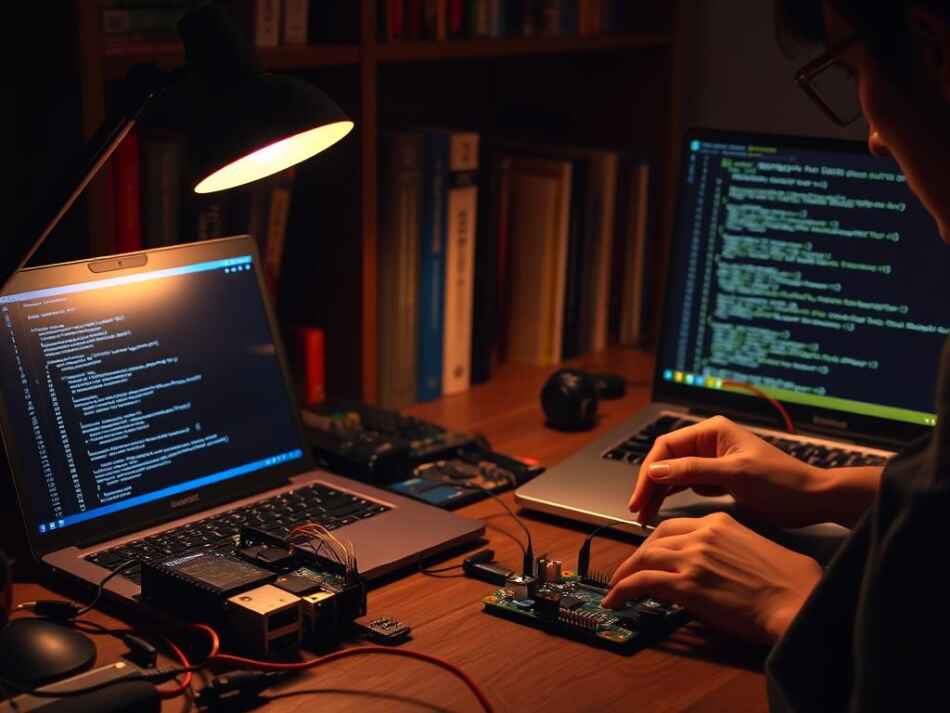
To start coding in Python, open Thonny from the Programming menu. Try this code to make an LED blink:
from gpiozero import LED
from time import sleep
led = LED(17)
while True:
led.on()
sleep(1)
led.off()
sleep(1)
This code shows how Python can control hardware. It’s perfect for projects that involve the physical world. As you get better, you can make more complex projects.
Scratch: Visual Programming for All Ages
Scratch is great for beginners or kids. It uses blocks instead of text, making programming fun and easy.
The Raspberry Pi version of Scratch has special blocks for hardware. This lets beginners create projects that interact with the world.
Scratch teaches programming basics in a fun way:
- Loops and iteration
- Conditional statements
- Variables and data storage
- Event-driven programming
- Basic debugging skills
A simple Scratch project can make a character dance when you press a button. This makes learning fun and builds confidence.
Other Languages to Explore
Python and Scratch are great for beginners. But Raspberry Pi also supports other languages for more advanced projects:
- JavaScript – Good for web and IoT projects. Node.js works well on Raspberry Pi.
- C/C++ – Offers high performance and direct hardware access. These languages are challenging but valuable.
- Java – Supported by Raspberry Pi, widely used in professional settings.
- Ruby – Known for its elegant syntax, Ruby is another beginner-friendly option.
- Sonic Pi – A unique environment for creating music through code, perfect for creative projects.
Each language has its own strengths. For example, JavaScript is great for web projects, while C++ is better for robotics.
Raspberry Pi supports many languages, making it perfect for learning. Many start with Scratch, then Python, and later explore specialized languages. This path helps you develop strong programming skills through hands-on hardware coding experiences.
Basic Projects to Get Started
Ready to use your Raspberry Pi? Start with these easy projects. They help you learn by doing. You’ll get better at using your device.
These projects need just a few parts and can be done in a few hours. They teach you important programming skills. You’ll see your hard work pay off right away.
Blinking LED Project
The blinking LED is a great first project. It teaches you about controlling the GPIO pins and basic programming.
To start, you need:
- 1 LED (any color)
- 1 resistor (220-330 ohm)
- 2 jumper wires
- Breadboard
First, connect the parts to your Raspberry Pi. The LED’s long leg goes to GPIO pin 17 with a resistor. The short leg goes to a ground pin. This makes a circuit that lights up the LED.
Next, write a Python script to control the LED. Open your favorite editor and write this code:
import RPi.GPIO as GPIO
import time
GPIO.setmode(GPIO.BCM)
GPIO.setup(17, GPIO.OUT)
try:
while True:
GPIO.output(17, GPIO.HIGH)
time.sleep(1)
GPIO.output(17, GPIO.LOW)
time.sleep(1)
except KeyboardInterrupt:
GPIO.cleanup()
This script makes the LED blink every second. Run it with python blink.py. You can change the blink pattern by adjusting the sleep times.
Simple Web Server Setup
Turn your Raspberry Pi into a web server. This project teaches you about networking and server management. It’s great for IoT education.
To start, install Apache. Open the terminal and type:
sudo apt update
sudo apt install apache2 -y
After it’s installed, Apache starts a default webpage. Visit your Raspberry Pi’s IP address in a web browser to see it.
The webpage files are in /var/www/html/. Make your own HTML file to replace the default one:
sudo nano /var/www/html/index.html
Write some basic HTML:
<!DOCTYPE html>
<html>
<head>
<title>My Raspberry Pi Server</title>
</head>
<body>
<h1>Hello from my Raspberry Pi!</h1>
<p>This page is hosted on my own web server.</p>
</body>
</html>
Save it and refresh your browser to see your new page. You can make it better by adding CSS, JavaScript, or PHP.
Temperature and Humidity Monitor
Build an environmental monitor to learn about sensors and data handling. It’s a great way to start with IoT education.
For this, you need:
- DHT11 or DHT22 temperature/humidity sensor
- 3 jumper wires
- 10K ohm resistor (for DHT22)
- Breadboard
Connect the sensor to your Raspberry Pi. The data pin goes to GPIO4, VCC to 3.3V, and GND to ground. DHT22 needs a 10K ohm resistor between data and VCC.
Install the Adafruit_DHT library:
sudo pip3 install Adafruit_DHT
Write a Python script to read the sensor data:
import Adafruit_DHT
import time
sensor = Adafruit_DHT.DHT22 # Or DHT11 depending on your sensor
pin = 4
try:
while True:
humidity, temperature = Adafruit_DHT.read_retry(sensor, pin)
if humidity is not None and temperature is not None:
print(‘Temperature: {0:0.1f}°C, Humidity: {1:0.1f}%’.format(temperature, humidity))
else:
print(‘Failed to get reading. Try again!’)
time.sleep(2)
except KeyboardInterrupt:
print(‘Program ended’)
Run it with python3 temp_monitor.py to see the readings. You can make it better by logging data or creating a web interface.
These projects are a great start. They teach you about hardware, programming, and how to apply what you’ve learned. As you do these projects, you’ll get better and ready for more challenges.
Remember, trying new things is key to learning. Don’t be afraid to change these projects or add your own ideas. The best learning happens when you make something your own.
Understanding the Raspberry Pi GPIO
The Raspberry Pi’s GPIO system is a key feature. It lets you connect directly to electronic parts. This makes your Raspberry Pi more than just a computer. It becomes a tool for making projects that interact with the world.
What is GPIO?
GPIO stands for General Purpose Input/Output. It’s a set of pins on your Raspberry Pi. These pins can send or receive signals.
GPIO pins connect your Raspberry Pi to things like LEDs and motors. Different models have different numbers of pins. Some pins give power, others are ground, and some are for input/output.
There are a few ways to number GPIO pins. This can be confusing for beginners. Here are three main systems:
- Physical numbering – Counts pins by their position (1-40)
- BCM numbering – Uses Broadcom SOC channel numbers
- WiringPi numbering – Used by the WiringPi library
Always check the numbering system used in tutorials or code. This avoids mistakes when connecting components.
How to Use GPIO Pins
There are many ways to use GPIO pins in code. Python users often use RPi.GPIO or GPIO Zero. GPIO Zero is great for beginners because it’s easy to use.
Here’s a simple example with GPIO Zero to control an LED:
from gpiozero import LED
from time import sleep
led = LED(17)
while True:
led.on()
sleep(1)
led.off()
sleep(1)
When working with GPIO pins, safety is key. Wrong connections can harm your Raspberry Pi or other parts. Always follow these safety tips:
- Never connect 5V directly to a GPIO pin (they operate at 3.3V)
- Use resistors when connecting LEDs to limit current
- Double-check your wiring before powering on
- Avoid static electricity by grounding yourself before handling components
- Power off your Raspberry Pi before changing connections
Example Projects Using GPIO
Once you get the basics, you can do more. Here are some projects that show GPIO’s power:
Button-controlled LED: Connect a button and an LED to GPIO pins. Program your Raspberry Pi to turn on the LED when pressed. This teaches about input pins and detecting events.
Motor Control: Use GPIO pins with a motor driver to control motors. This is great for robotics or automated projects.
Environmental Monitoring: Connect sensors like the DHT11 or BMP280 to your Raspberry Pi. It can read these sensors and log or display the data.
Traffic Light Simulator: Connect three LEDs to GPIO pins and program them to act like traffic lights. This project teaches about sequencing and timing.
GPIO makes the Raspberry Pi perfect for learning both software and hardware. As you do these projects, you’ll learn to make your own hardware solutions.
Troubleshooting Common Issues
When you start coding with Raspberry Pi, you might face some common problems. These issues are normal and will make you better at using your device. Learning to find and fix problems is key to your Raspberry Pi journey.
Power Supply Problems
Power issues are common for Raspberry Pi users. Your mini PC needs a stable power source to work right. Many beginners use the wrong power supplies, leading to problems.
A small lightning bolt icon in the top-right corner of your screen means power issues. This can cause freezes, corrupt SD cards, or stop your Raspberry Pi from booting.
To fix power problems, try these steps:
- Use the official Raspberry Pi power supply when you can
- Make sure your power adapter gives at least 5V/2.5A for Raspberry Pi 3 or 5V/3A for Raspberry Pi 4
- Try a different USB cable—some cables can lower voltage
- Remove extra USB devices that use too much power
Display and Connection Issues
Display problems can be frustrating. If your screen stays blank after connecting your Raspberry Pi, don’t worry. There are many reasons and solutions.
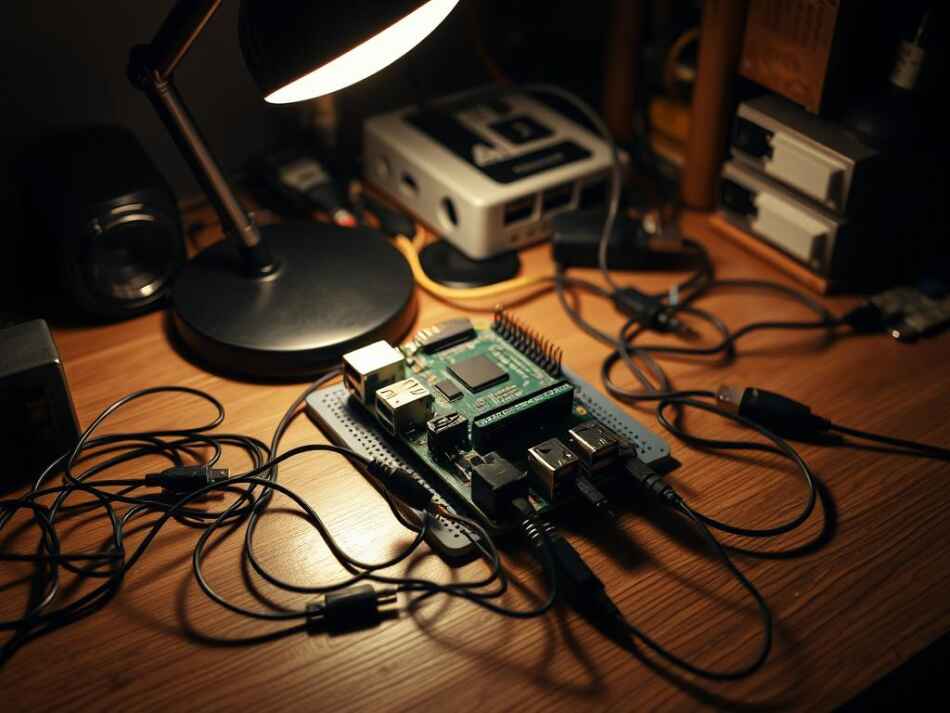
HDMI problems often come from wrong resolutions or detection. Try these fixes:
- Check that your HDMI cable is fully in at both ends
- Try a different HDMI cable or port on your display
- Edit the config.txt file to force specific HDMI modes
- For headless setups, check SSH is on before booting
- Test your network with another device
For network problems, check your Wi-Fi in the wpa_supplicant.conf file. Always double-check your network name and password as they are case-sensitive and often cause problems.
Software Glitches
Software issues can be small or big. The good news is most can be fixed without starting over.
Package installation errors often happen when your system is out of date. Always run:
- sudo apt update (to refresh package lists)
- sudo apt upgrade (to install updates)
- sudo apt autoremove (to clean up unnecessary packages)
If your Raspberry Pi freezes, it might be too hot. Check your CPU temperature with “vcgencmd measure_temp” and add a heatsink or fan if it’s too high.
For big issues like corrupted installations or boot failures, you have two choices:
- Use the recovery mode to fix your system
- Back up your files and reinstall the operating system
- Restore your settings from a previous backup
- Keep a journal of issues and solutions
Troubleshooting gets better with practice. Many keep a journal to track problems and solutions. This helps solve current issues and builds expertise for future projects.
When asking for help online, be clear about your Raspberry Pi model, operating system, and the problem steps. The Raspberry Pi community is very helpful, and detailed info helps others give better advice.
Expanding Your Raspberry Pi Knowledge
The Raspberry Pi world is full of resources to help you learn more. As you get better with your device, you’ll want to meet other fans. The Raspberry Pi community is full of learning chances and project ideas.
Online Resources and Communities
Meeting other Raspberry Pi fans can really help you learn. The official Raspberry Pi forums are a great place to start. Here, people of all levels share ideas and help each other.
Reddit has many Raspberry Pi groups. The r/raspberry_pi subreddit has over a million members. They share projects and help solve problems.
Stack Exchange’s Raspberry Pi section is great for getting answers. Experts help with tough questions. It’s perfect for mini PC coding problems.
GitHub has thousands of Raspberry Pi projects. These projects have code and guides. They’re great for learning how to do things, like with IoT education.
Recommended Books for Learning
Books are great for learning in depth. For beginners, “Getting Started with Raspberry Pi” by Matt Richardson and Shawn Wallace is a good start. It teaches the basics of Python on the Pi.
“Programming the Raspberry Pi: Getting Started with Python” by Simon Monk is good for electronics. It helps you understand how to work with hardware and code.
“Raspberry Pi Cookbook” by Simon Monk has solutions to many problems. It’s easy to find what you need for your projects.
Books like “Raspberry Pi for Secret Agents” by Stefan Sjogelid focus on security. “Raspberry Pi for Computer Vision” by Adrian Rosebrock is about machine learning. They help you learn specific skills.
Tutorials and YouTube Channels
Video tutorials are great for visual learners. The Raspberry Pi Foundation’s YouTube channel has lots of videos. They cover everything from basics to advanced projects.
ExplainingComputers has detailed tutorials and reviews. They help you understand how to build projects and why.
For IoT education, DroneBot Workshop and Andreas Spiess are good. They share projects that use Raspberry Pi with other tech.
Jeff Geerling’s channel is all about making your Raspberry Pi better. He tests and compares different setups. This helps you choose the best hardware for your projects.
As you use these resources, you’ll start to make your own projects. The Raspberry Pi community loves new ideas. By joining in, you’ll learn a lot and help others too.
Intermediate Projects for Enhanced Learning
Intermediate Raspberry Pi projects are more than just coding. They mix skills you’ve learned with new ones. This makes you more confident and helps you make useful things for everyday life.
These projects need more time and parts than basic ones. They build on what you know and add new skills. Here are three cool projects for your Raspberry Pi.
Building a Raspberry Pi Weather Station
Building a weather station is a great Raspberry Pi project. It uses hardware, collects data, and shows weather info. It turns your Raspberry Pi into a smart weather monitor.
To start, you need sensors for temperature, humidity, and more. These connect to your Raspberry Pi. You’ll write Python code to get data from these sensors.
You’ll also learn to use a database to save weather data. This lets you see trends over time. Many people make web interfaces to show current and past weather.
This project teaches you about sensor setup, data saving, and database use. You can add more features like weather forecasts or email alerts.
Creating a Media Center with Kodi
Turn your Raspberry Pi into a media center with Kodi. This shows off your Raspberry Pi’s media skills. You’ll learn about different operating systems and managing media.
First, install a special Linux version like LibreELEC or OSMC. They have Kodi ready to go. These systems are made for media on Raspberry Pi.
With Kodi, you can stream videos, music, and photos. You can also watch TV shows and movies. It works with apps and games too.
This project teaches you about network sharing, media libraries, and video playback. You can add-ons to make Kodi better and change how it looks.
For a better experience, add a remote, more storage, or make Kodi start automatically. This makes your Raspberry Pi like a streaming device but cheaper.
Home Automation with Raspberry Pi
Home automation is a great use of Raspberry Pi projects. It’s a good way to learn about IoT education. You’ll control devices from anywhere and learn about networks, security, and design.
Home Assistant is a great platform for smart homes on Raspberry Pi. It connects different devices, making them work together.
A basic setup might include smart bulbs, sensors, and plugs. You can control lights, check the weather, and more.
Home automation is about making things happen automatically. For example, lights can turn on at sunset or send alerts when you’re away.
This project teaches you about APIs, security, and programming. You can add voice control, custom dashboards, or make your own devices.
Home automation with Raspberry Pi is a cheap way to start a smart home. It lets you control your home and keep your data private. It shows how IoT education can lead to real uses of technology.
Advanced Coding Techniques with Raspberry Pi
Unlocking the Raspberry Pi’s full power means learning advanced coding. This small device can do big things, like making professional solutions cheaply. It’s great for hardware coding and teaching tech.
Using Raspberry Pi for Machine Learning
Machine learning on a Raspberry Pi might seem hard. But, special frameworks make it doable. TensorFlow Lite is one, made for devices like the Pi.
With these tools, your Pi can do cool things like:
- Real-time image recognition using a camera module
- Voice command processing for hands-free control
- Predictive analytics on sensor data
- Pattern recognition for security applications
- Natural language processing for simple conversational interfaces
To make machine learning work better on the Pi, try these tips:
- Use models that need less memory and power
- Prune models to cut down on unnecessary parts
- Process data in batches, not all at once
- Use the Pi’s GPU for faster processing
- Try a Coral USB Accelerator for better speed
Integrating Raspberry Pi with IoT
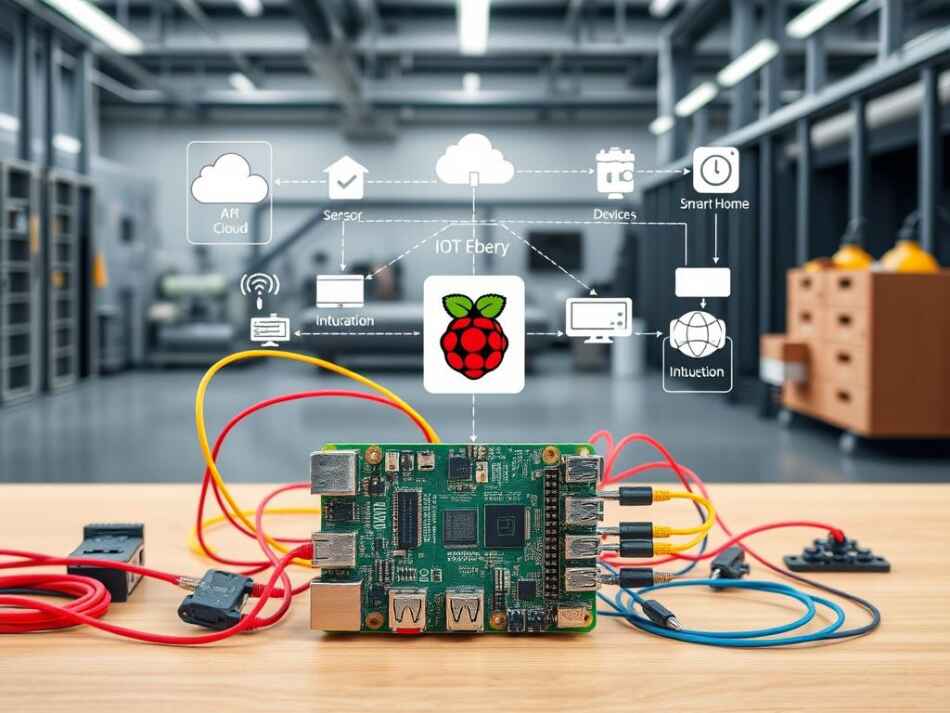
The Raspberry Pi is great for the Internet of Things (IoT). It connects physical things to the cloud. This is super useful for IoT education and real projects.
Connecting your Pi to the cloud makes it even more powerful. You can use:
- AWS IoT Core for safe device talks
- Google Cloud IoT for Google service links
- Custom MQTT brokers for simple device talks
- Home Assistant for smart home control
When making IoT projects with Raspberry Pi, keep these security tips in mind:
- Use encrypted connections (TLS/SSL) for all talks
- Make sure devices are well-authenticated
- Keep your OS and software up to date
- Make a separate network for IoT devices
- Limit what each service can do
Custom Scripts for Automation
The Raspberry Pi is great for running custom scripts all the time. Python is perfect for making complex automation systems. This turns your Pi into a tool that works all day, every day.
Good automation on Raspberry Pi includes:
- Python scripts for main tasks
- Cron jobs for timed tasks
- Systemd services for always-running tasks
- Bash scripts for system tasks
- APIs for talking to other services
Some cool automation projects you can do are:
- Automated backups to keep your data safe
- Environmental monitoring with alerts
- Smart home controls that react to things
- Network monitoring tools for your home network
- Collecting and analyzing data from sensors or APIs
Home Assistant is a big deal for Raspberry Pi. It’s a free platform for controlling smart devices and automating your home. You can control it from anywhere.
When you mix these advanced techniques, your Raspberry Pi can do amazing things. It can learn from sensor data, connect to the cloud, and run scripts all by itself. It can do this for months or years without help.
The Raspberry Pi is really valuable for learning and real projects. Its open design and ability to be programmed make it do things that cost a lot or are hard with other products.
Making the Most of Raspberry Pi Accessories
The Raspberry Pi is powerful alone, but the right accessories make it even better. As you work on Raspberry Pi projects, the right tools enhance your work. They protect your investment and make things easier.
Let’s look at the key accessories that boost your Raspberry Pi experience.
Recommended Add-ons and HATs
HATs, or Hardware Attached on Top, are special boards for the Raspberry Pi. They plug into the GPIO pins and add new features. Most HATs are easy to use, needing little setup.
The Sense HAT is great for beginners. It has an LED matrix, a joystick, and sensors for temperature and humidity. It’s perfect for weather stations and games.
For robotics, motor controller HATs are essential. They let you control motors for rovers and arms. The HiFiBerry DAC+ improves sound quality for audio projects.
For portable projects, consider display adapters like the Hyperpixel. They offer high-resolution touchscreens without the need for big monitors. HATs with cellular or LoRa connectivity are great for IoT projects.
Exploring Raspberry Pi Cases
A good case is key for your Raspberry Pi. It protects from dust and damage, and can improve looks and function.
For daily use, a simple plastic case works well. It’s affordable and lets you access all ports. For heavy use, look for cases with cooling solutions like heatsinks or fans.
Special cases are for specific needs. Weather-resistant cases keep your Pi safe outside. Some have battery compartments or mounting brackets for different uses.
Choose a case based on heat management. The Raspberry Pi 4 and 5 get hot, so a case with passive cooling is best. For even more cooling, consider a fan.
Essential Tools for Raspberry Pi Users
Some tools are essential for working with your Pi. A multimeter checks voltages and circuits. A logic analyzer is useful for debugging digital signals.
For building circuits, get a good soldering iron and basic parts. A breadboard and jumper wires are great for quick tests. A power bank keeps your Pi running when you’re away from outlets.
Software tools are also vital. Tools like VNC or SSH let you control your Pi from another computer. Monitoring apps track performance and prevent overheating.
Don’t forget about backups. The microSD card can get damaged easily. Tools like Etcher and regular backups save your work.
Choosing the right accessories and tools makes working with your Raspberry Pi better. Start with the basics and add more as your projects grow.
Staying Updated with Raspberry Pi Developments
To get the most out of Raspberry Pi for mini PC coding and IoT education, keep up with its updates. The Raspberry Pi Foundation always brings new hardware, software, and community projects. These updates help you improve your projects and use the latest features.
New Raspberry Pi Models and Features
The Raspberry Pi family has grown a lot. The first Model B came out in 2012. Now, each new model has better processing power, memory, and connectivity.
Here’s how Raspberry Pi models have improved:
- Original Model B to Pi 4B: CPU performance went from single-core 700MHz to quad-core 1.8GHz
- RAM grew from 512MB to up to 8GB
- Video support moved from basic 1080p to dual 4K
- Connectivity got better from 100Mbps Ethernet to Gigabit Ethernet and Wi-Fi 5
- The latest Raspberry Pi 5 has a 2.4GHz quad-core processor
Special models like the Pi Zero are for small or low-power projects. The Compute Module is for industrial use. Choose the right model for your project, not just the newest one.
Software Updates and Best Practices
The Raspberry Pi OS gets updates often. These updates add new features, security, and performance boosts. Knowing when to update helps keep your IoT education projects stable.
To update safely, follow these steps:
- Back up your SD card or important files before big updates
- Use sudo apt update and sudo apt full-upgrade for updates
- Check the Raspberry Pi forums for known issues before big updates
- Keep separate SD cards for development and production
- Keep track of your project’s dependencies for easy troubleshooting
Be careful when updating to new OS versions. Projects with specific libraries or hardware might need extra care. The Raspberry Pi Foundation usually keeps things compatible, but sometimes changes are needed. Testing updates in a safe space before using them in real projects can save time.
For remote work, using VS Code with Raspberry Pi makes development easier. It helps manage software versions across devices.
Community Events and Hackathons
The Raspberry Pi community offers many chances to meet others, share knowledge, and show off your projects. These interactions can give you new ideas and solutions you might not find in the manual.
Local Raspberry Jam meetups are great for all skill levels. They have projects, workshops, and new ideas. These events happen worldwide and welcome everyone, from beginners to experts.
Online hackathons and challenges are great for improving your mini PC coding skills. The Raspberry Pi Foundation hosts events like Coolest Projects and the Astro Pi Challenge. These have even sent student code to space.
Initiatives like Code Club and CoderDojo use Raspberry Pi for teaching. They help young learners learn to code. Helping out with these programs is rewarding and helps you learn more.
Helping the community makes it stronger. Share your projects on GitHub, write tutorials, or answer questions on forums. This helps others and shows your skills.
By joining the Raspberry Pi community, you’ll stay up-to-date and help shape the platform’s future. It’s great for mini PC coding and education.
Conclusion: Embrace Your Coding Journey with Raspberry Pi
The Raspberry Pi opens doors to a world where coding meets real-world applications. This tiny computer bridges abstract programming and tangible results. It’s perfect for both beginners and experienced users.
Benefits of Learning with Raspberry Pi
Raspberry Pi offers a unique hands-on learning experience. Users connect physical components and see results right away. This helps them understand hardware and software better.
These skills are valuable in tech careers, like embedded systems and automation. They give learners an edge in the job market.
The Future of Raspberry Pi in Tech Education
Raspberry Pi is changing how we learn about tech. Schools and universities are using it in STEM and research projects. The Raspberry Pi Foundation makes learning about computing accessible.
This drives innovation in IoT education. As smart devices grow, the skills from Raspberry Pi projects become more important.
Encouraging Exploration and Creativity
Raspberry Pi is a flexible tool for creativity. Start with basic projects and then tackle bigger challenges. Every mistake is a chance to learn, and every success is a step forward.
The Raspberry Pi community supports makers of all levels. They offer help through forums, events, and resources.
Your journey with Raspberry Pi is just starting. Use your curiosity and skills to bring your ideas to life with code and circuitry.